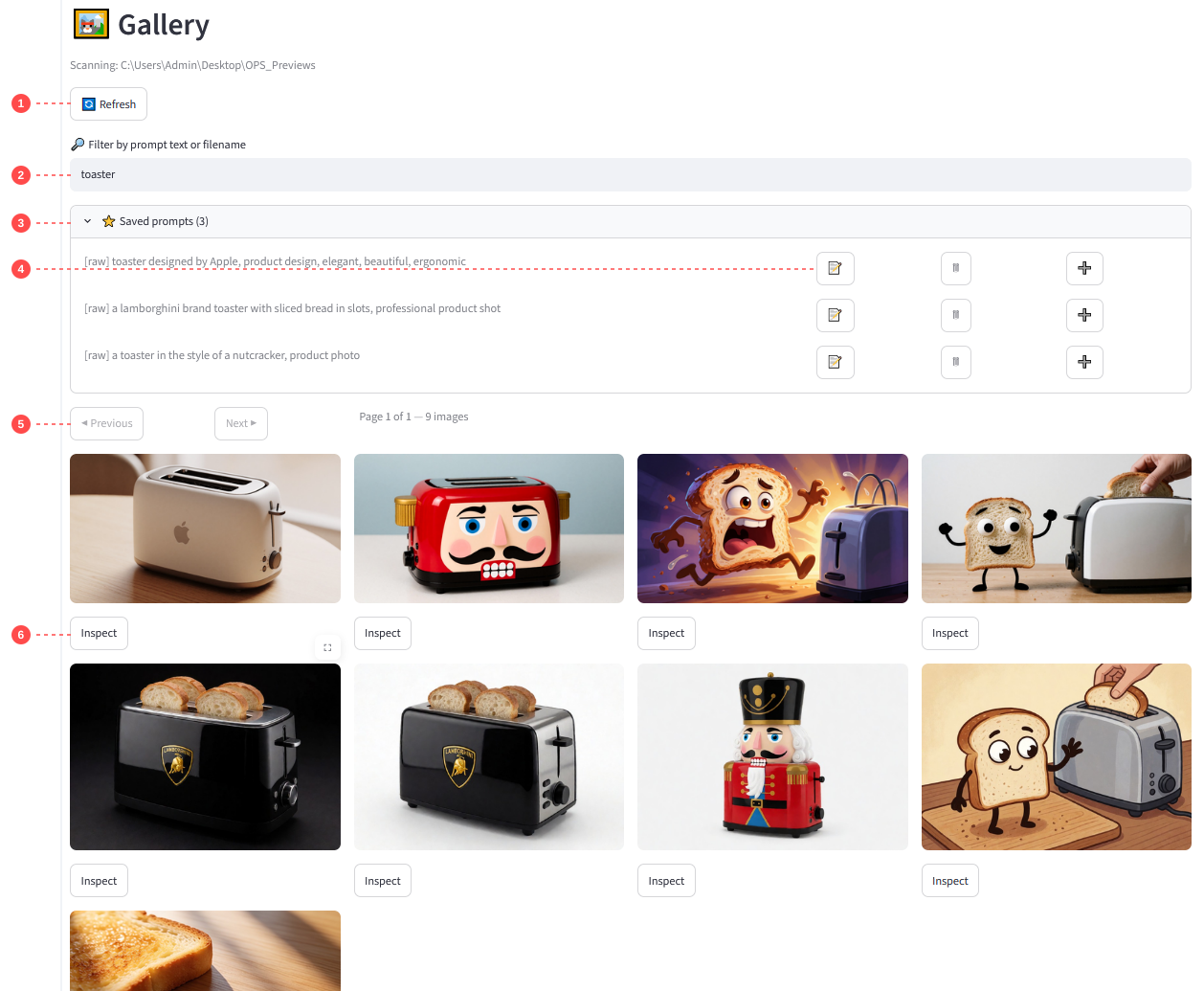
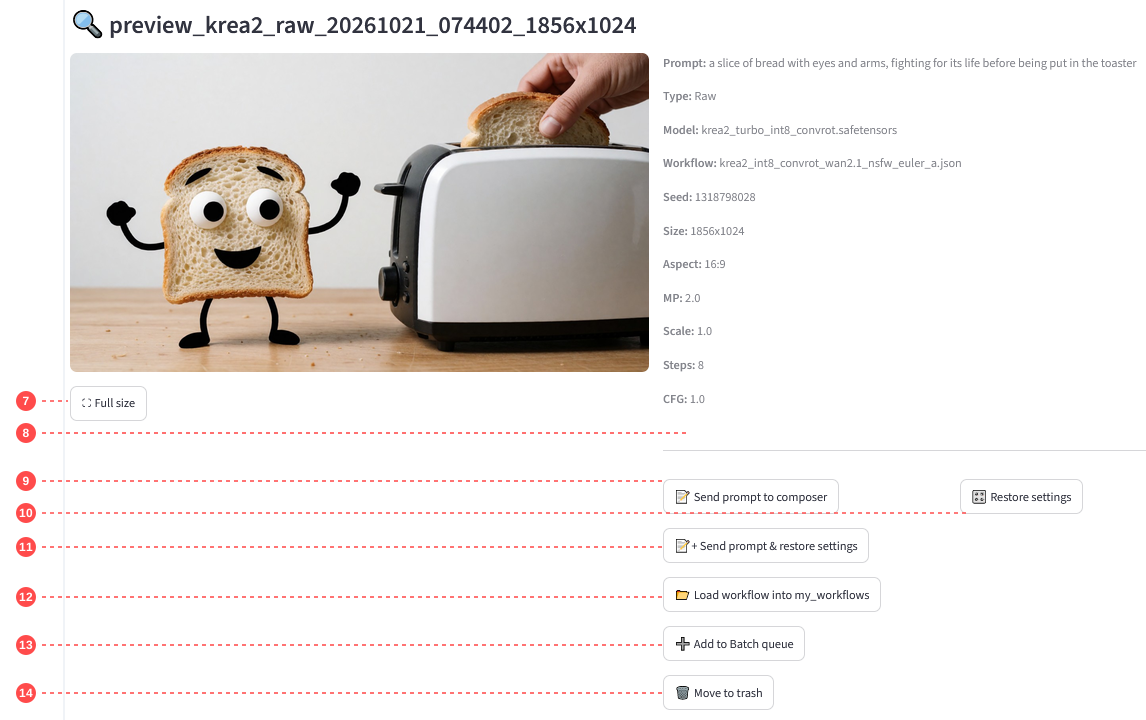
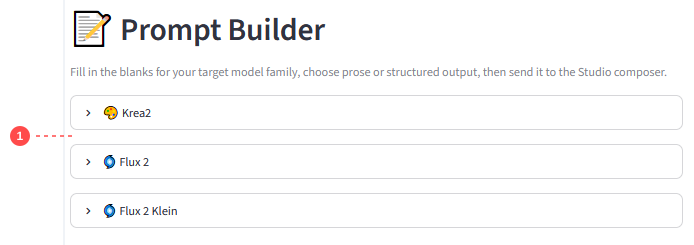
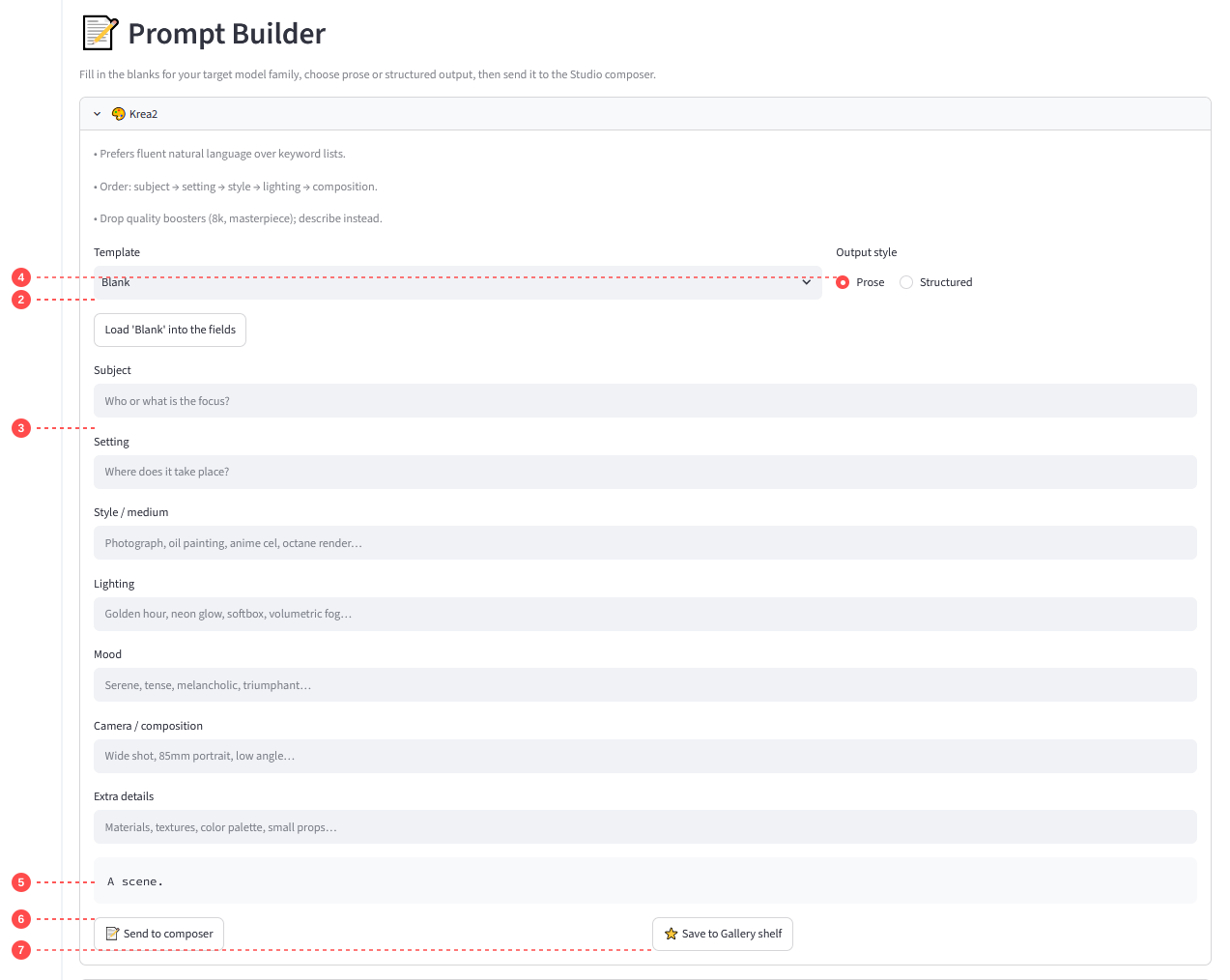
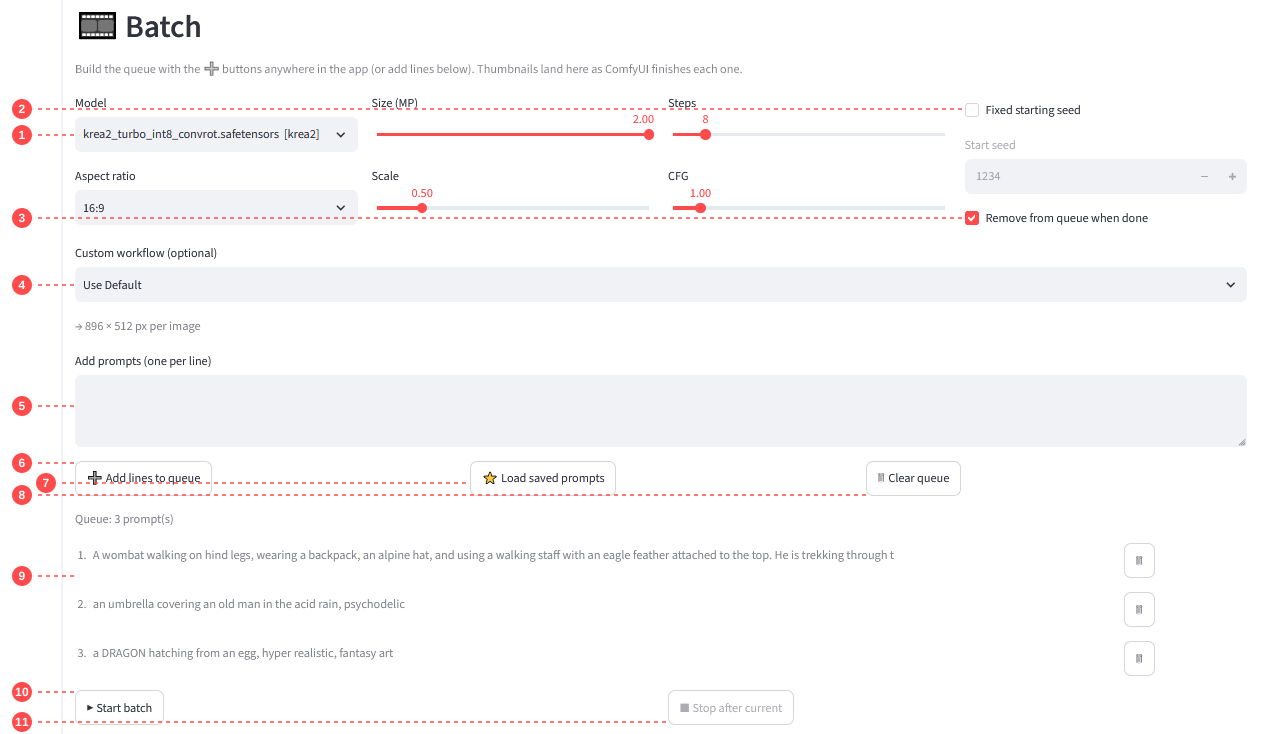
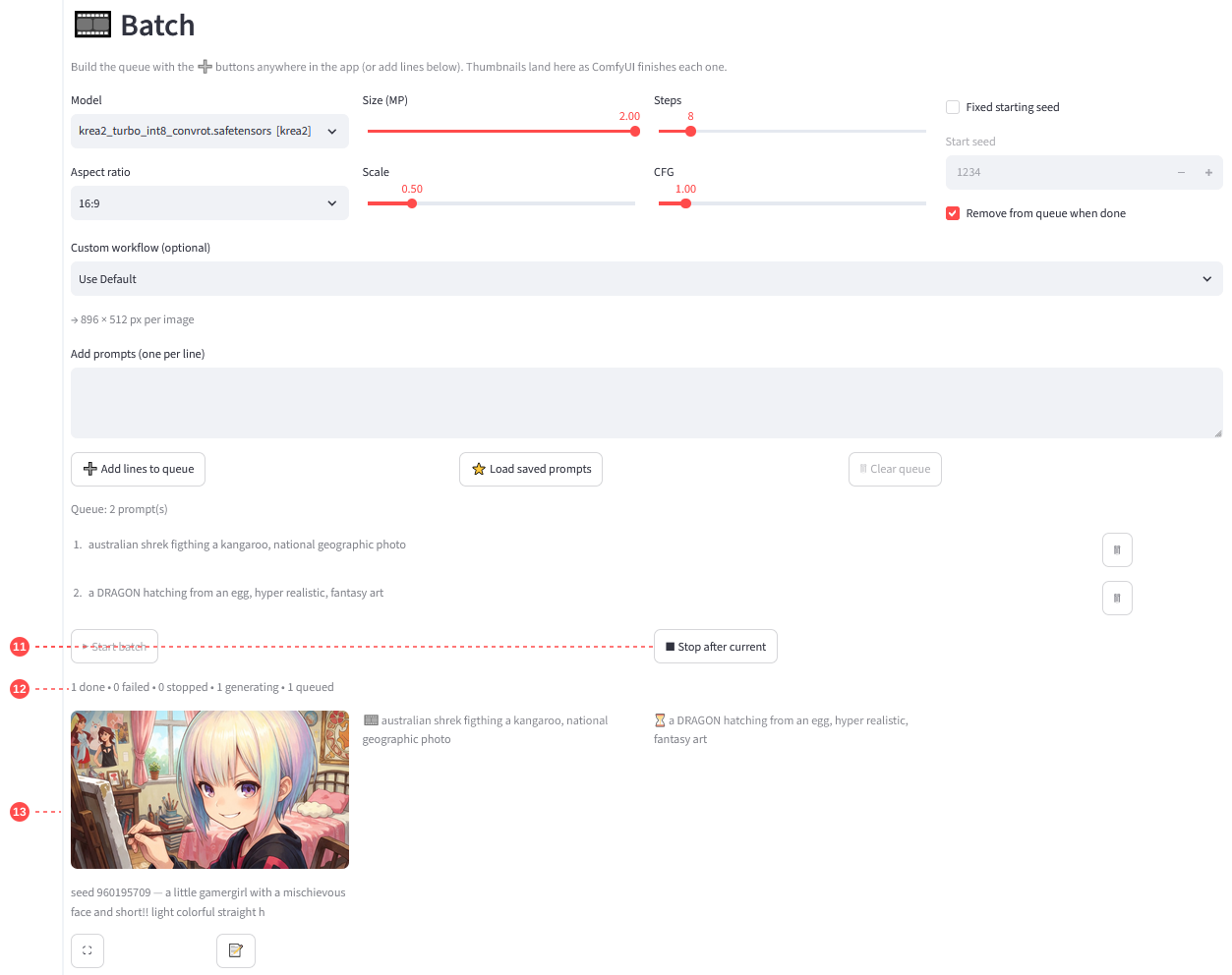
Page 1 — Studio: find, remix, optimize, test
The working page: search a million prompts, compose, optimize with a local LLM, and preview on your own ComfyUI.
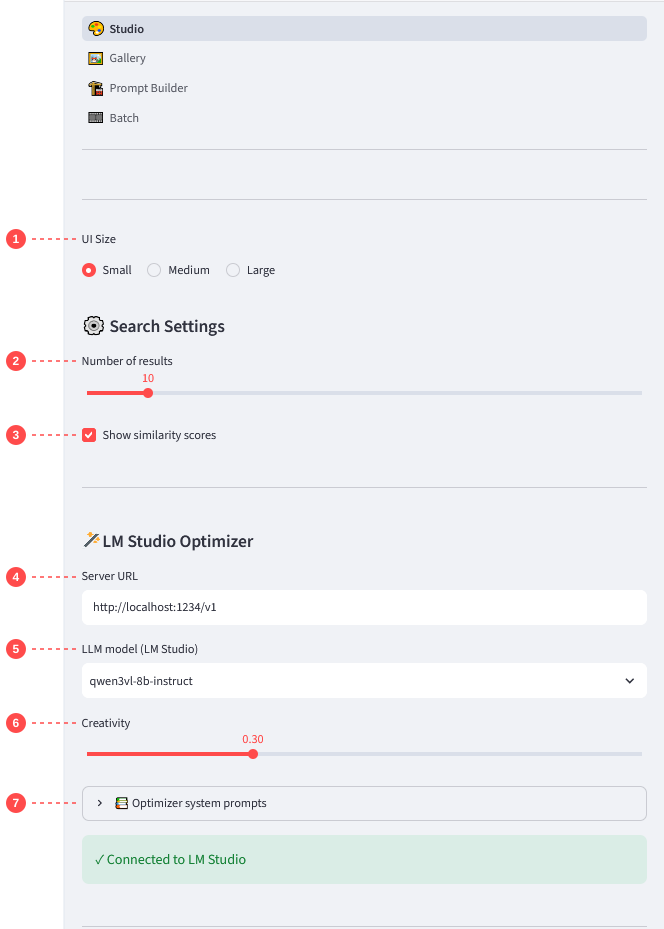
- 1UI Size — Small / Medium / Large; persists; browser zoom stacks on top
- 2Number of results — how many hits a search shows
- 3Show similarity scores — toggle the % badge on cards
- 4Server URL LM — where the optimizer lives
- 5LLM model — which local LLM writes optimizations
- 6Creativity — 0.0 literal … 1.0 spicy
- 7📚 Optimizer system prompts — Krea2 / Flux 2 / Flux 2 Klein expanders; up to five named slots each; built-ins read-only (↺ restores); the slot matching the selected model's family is used by Optimize
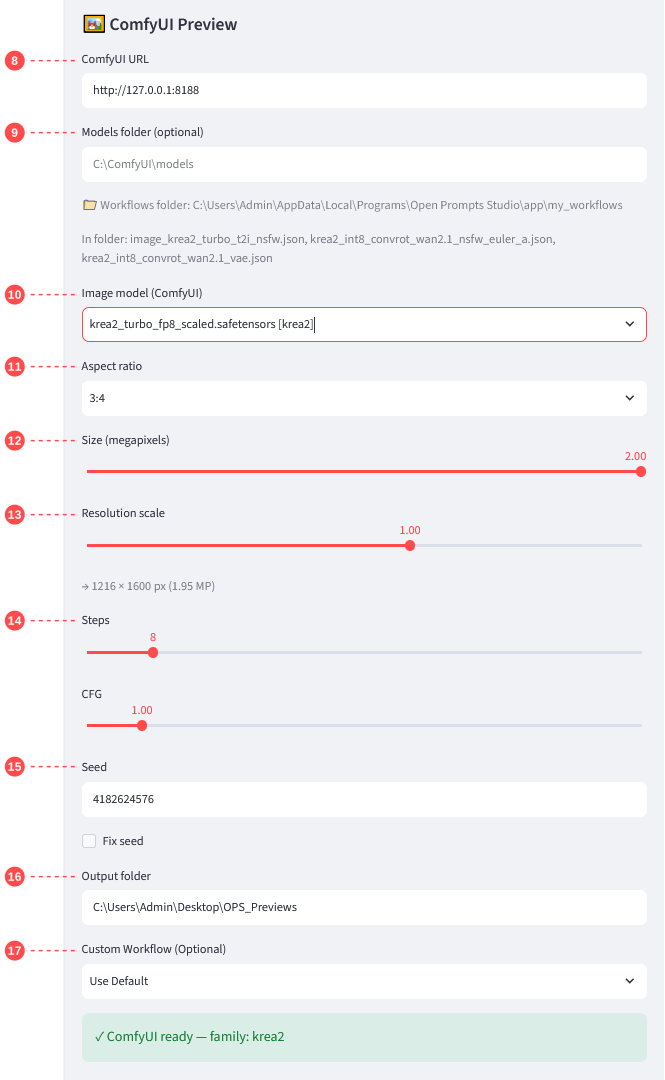
- 8ComfyUI URL — your ComfyUI server
- 9Models folder — optional; helps classify unfamiliar models
- 10Image model — dropdown; [family] tag = supported
- 11Aspect ratio — 1:1, 16:9, 9:16, …
- 12Size (megapixels) — base resolution
- 13Resolution scale — multiplier; exact pixels captioned
- 14Steps / CFG — per-family sampling controls
- 15Seed + Fix seed — reproducible runs; the seed used is written back after random runs
- 16Output folder — default Desktop\OPS_Previews
- 17Custom Workflow — optional .json from my_workflows
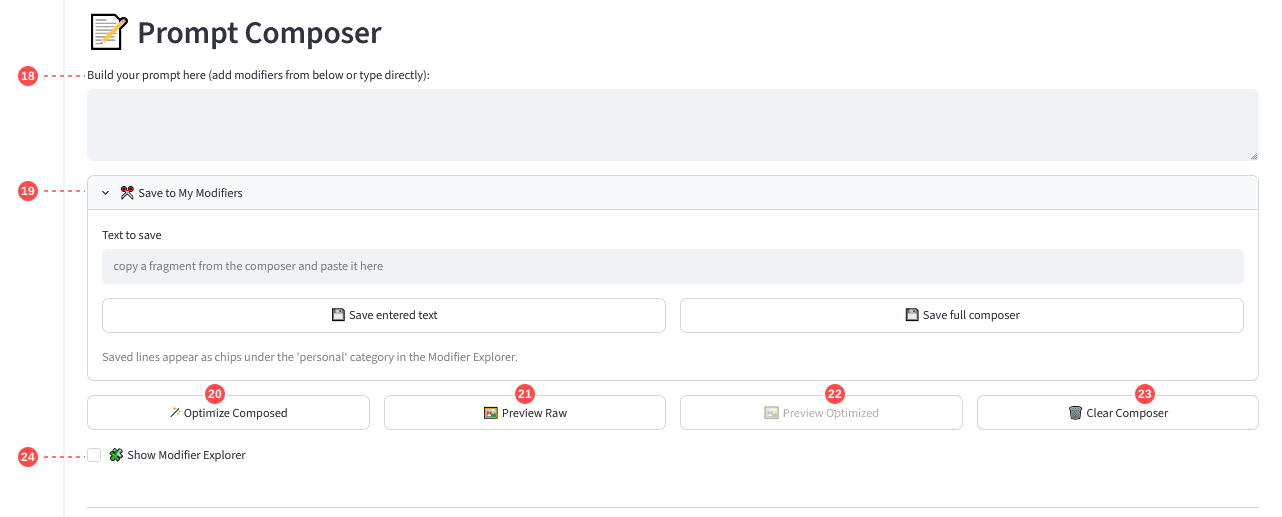
- 18Composer textarea — the working prompt. Drafts survive refreshes and restarts from their last applied state: press Ctrl+Enter (or click outside the box) before leaving the page; the "Press Ctrl+Enter to apply" hint in the box corner is that gate
- 19✂️ Save to My Modifiers — save a pasted fragment or the whole composer; fields clear after saving; lines appear as chips under “personal”
- 20🪄 Optimize Composed LM — rewrite composer text with the active family slot
- 21🖼️ Preview Raw C — generate composer text as-is
- 22🖼️ Preview Optimized C — generate the optimized version
- 23🗑️ Clear Composer — empties composer and composed previews
- 24Show Modifier Explorer — reveals the chip explorer
Generations run in the background: a “🎞️ Generating… (N)” caption shows while active and images land by themselves — nothing locks up.
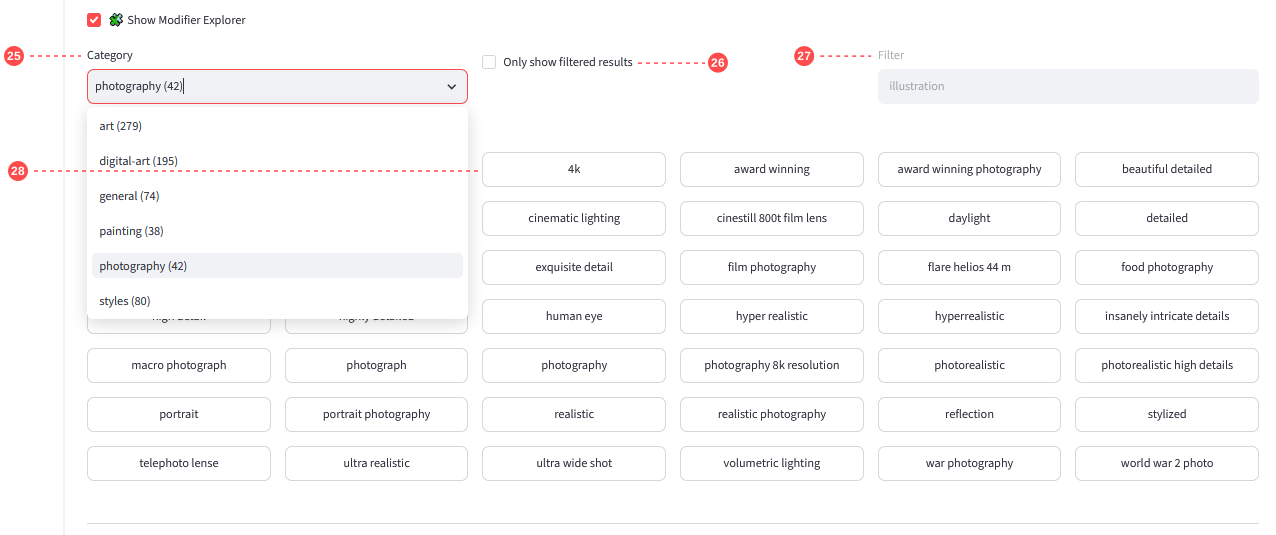
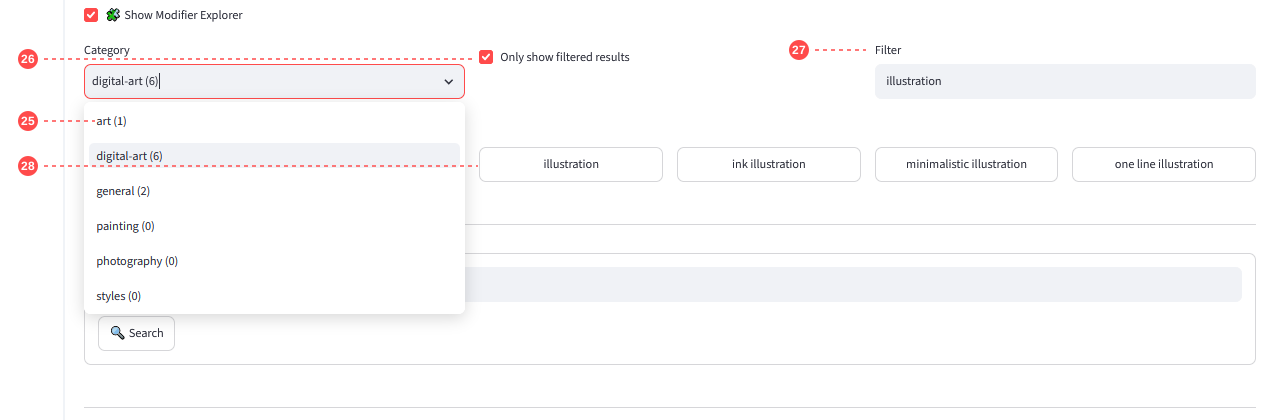
- 25Category — with a filter active, shows live match counts per category
- 26Only show filtered results — hides non-matching chips
- 27Filter — narrows the chip grid
- 28Chips — click to append the modifier to the composer
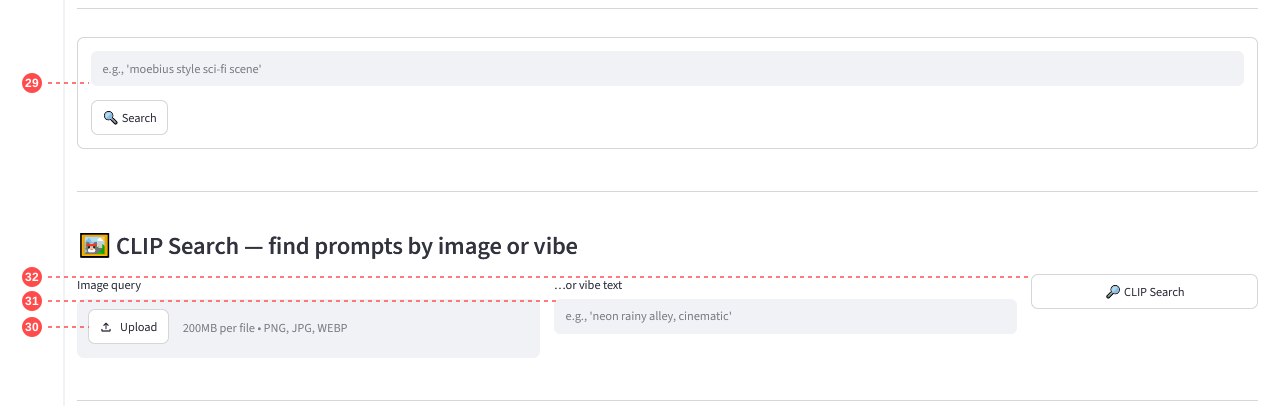
- 29Query + 🔍 Search — meaning-based over ~1M prompts
- 30Image upload — any picture as a query
- 31Vibe text — or describe a mood / style
- 32🔎 CLIP Search — visual-similarity ranking (25–35% scores are normal here)
- 33Score — semantic % (CLIP uses its own scale)
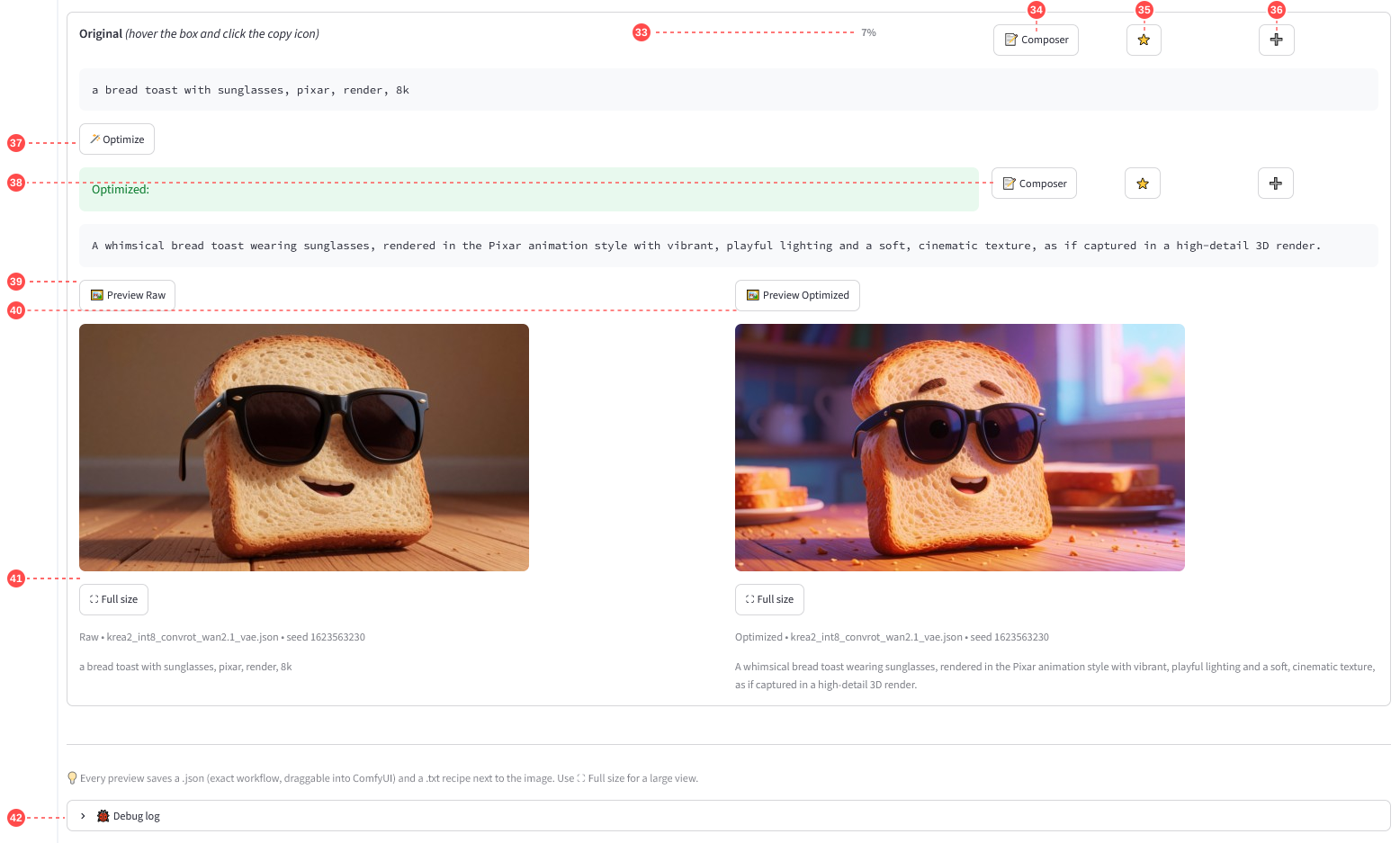
- 34📝 Composer — raw prompt → composer
- 35⭐ — save raw prompt to the shelf
- 36➕ — raw prompt → Batch queue
- 37🪄 Optimize LM — produces the optimized block
- 38Optimized row 📝 / / ➕ — same three actions on the optimized text
- 39🖼️ Preview Raw C
- 40🖼️ Preview Optimized C — enabled once optimized
- 41Previews — newest two; ⛶ full size; captions show label / workflow / seed / prompt
- 42🐞 Debug log — diagnostics; ignore unless asked